You have to be signed in
English version follows in the English pass.
Written By Logiks Solutions
Last updated About 1 month ago
Nothing works without signing in
Every Logiks AI Assistant feature runs through your account. While you are not signed in, none of them is usable – and that is harder to spot on the ribbon than you would expect.
What it looks like when you are signed out
The Task menu is then not greyed out but absent altogether. The quick-access buttons disappear too. What remains is a single large Sign In button.
This regularly produces the report "my buttons are missing". They are not missing – they are hidden, because without a sign-in they could not do anything.
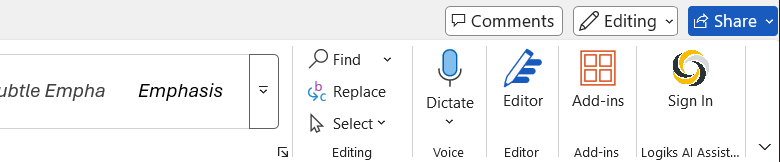
Signing in
Click Sign In. The sign-in window opens.
Enter your email address and click Continue.
Depending on how your workspace is set up, one of two things follows:
a field for your password,
or a verification code sent to you by email.
After signing in the ribbon rebuilds itself: the button disappears, the Task menu and the quick-access buttons appear.
If your organisation uses a central identity provider, the sign-in window also offers Continue with SAML below a divider. That signs you in through your company's own sign-in page instead of a separate password.
When you are never asked
Your administrator can enable automatic sign-in through your Office account. You are then asked once whether you want to sign in as that account; after that it happens in the background. The window says so explicitly: you will only be asked this once.
Signing out
Task ▸ Sign Out
The ribbon then returns to the state described above: only Sign In. That is the quickest route if you are handing the machine to somebody else.
When signing in fails
"The email or password is incorrect." – Check both. Note whether your workspace uses a password at all, or a code.
"Could not connect to the server. Please check your network." – The add-in cannot reach the service. Most common causes: no internet connection, or a firewall in your organisation blocking it.
"The request timed out. Please try again." – The service did not answer in time. A second attempt is usually enough.
"SSO login was cancelled." – Your identity provider's window was closed before the sign-in finished.
"This workspace does not recognise … Please sign in with your Logiks account." – Your Office account is not registered in this workspace. Sign in with your email address instead, or ask your administrator to map it.
Related articles
Where to find Logiks AI Assistant on your ribbon
What your administrator decides and what you can set
Was this helpful?
Still need help? Ask the team