Installing Logiks AI Assistant
Install the add-in for Word, Excel or Outlook on Windows, and sign in on first run.
Written By Logiks Solutions
Last updated About 1 month ago
Before you start
Logiks AI Assistant runs on Windows, inside Microsoft Word, Excel and Outlook. Each application has its own installer, so install the ones you actually use. See System requirements and updates for the full list of what has to be in place.
The add-in is installed for every user of the computer, so Windows will ask for administrator rights. If you are not allowed to install software yourself, your IT department can roll it out silently for the whole company.
Installing
Download the setup file for the application you want:
Close the Office application first. An installer cannot replace files that are in use.
Run the setup and confirm the Windows prompt for administrator rights. The setup carries the runtimes the add-in needs and installs them only if they are missing, so the first installation on a machine takes a little longer.
Start Word, Excel or Outlook again.
Repeat this for each of the three applications you want to use the assistant in.
Where to find it afterwards
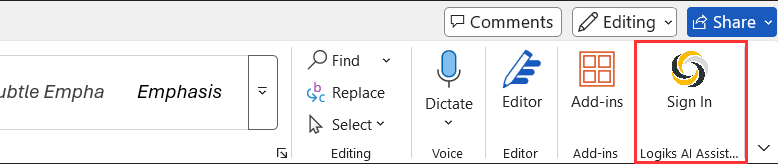
There is no separate ribbon tab. On the Home tab you will find a group called Logiks AI Assistant with a Sign In button. If your window is narrow, Office may collapse the group into a single button.
First run
Click on Sign In. You sign in with your Logiks account; until you do, the assistant will not answer.
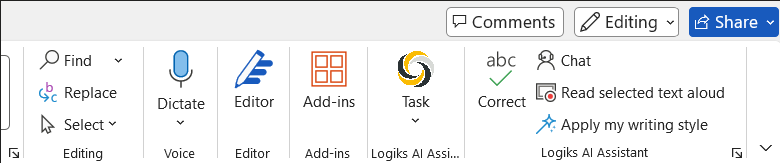
Once signed in, the Task menu appears.
There is nothing else to set up. Which AI models you can use is configured centrally for your organisation - see What your administrator decides and what you can set.
Select some text and try Correct or Translate.
Updates
The assistant checks for new versions itself and offers to install them. You can also check at any time under Task ▸ Settings. An update is installed the same way as the first installation, so the Office application closes for it.
Removing it
Uninstall it like any other Windows program, under Settings ▸ Apps ▸ Installed apps. Each application's add-in is listed separately.
Tips
If the group does not appear on the Home tab, close every Office application and start it again. The add-in registers itself while Office is not running.
Installing for one application does not install it for the others. Word, Excel and Outlook each have their own setup.
Related
Was this helpful?
Still need help? Ask the team